



Эта статья была полезной?
Как обходить капчу в OpenClaw

Строю backend, IT-инфраструктуру и automation-сервисы для масштабируемых SaaS-продуктов.
Обход капчи в OpenClaw: Пошаговое руководство по интеграции с API для автоматизации решения.
OpenClaw — это мощный персональный ИИ-ассистент, который вы можете развернуть на собственном оборудовании. Одно из его главных преимуществ заключается в поддержке множества каналов связи: вы можете общаться с агентом через привычные интерфейсы — WhatsApp, Telegram, Discord, Slack, Signal или iMessage.
Сценарий использования выглядит так: вы просто отправляете боту в Telegram ссылку и просите выполнить задачу. Агент запускает скрытый изолированный профиль браузера Chromium, переходит на сайт, анализирует контент, заполняет формы и кликает по кнопкам. Однако при веб-автоматизации бот неизбежно сталкивается с преградой в виде капчи, и процесс зависает.
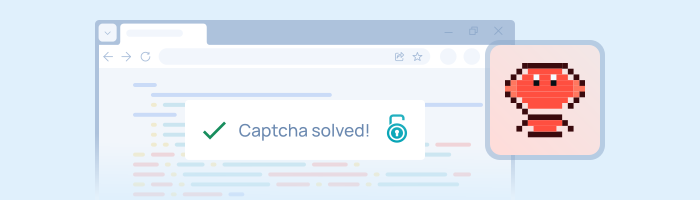
Традиционно обход капчи требует написания скриптов и API-вызовов, но архитектура OpenClaw позволяет применить элегантный zero-code подход — интеграцию официального браузерного расширения 2Captcha. Расширение работает в фоне, само находит капчу и подставляет токен решения.
Поддерживаемые типы капч
Интеграция расширения 2Captcha в среду OpenClaw обеспечивает автоматический обход следующих защитных механизмов:
- Image (Picture)
- reCAPTCHA V2 (включая невидимую)
- reCAPTCHA V3
- Cloudflare Turnstile
- Cloudflare Challenge
- Arkose Labs (FunCaptcha)
- GeeTest
Важное техническое требование: Выбор браузера
Начиная с версии Google Chrome 137+ (середина 2025 года), разработчики без предупреждения удалили поддержку флага --load-extension в обычных пользовательских версиях браузера. Это означает, что стандартный Google Chrome или Microsoft Edge будут игнорировать попытку загрузить любое расширение в автоматизированной сессии.
Для успешной работы необходимо использовать альтернативы, которые сохранили поддержку расширений:
- Chrome for Testing
- Чистый Chromium (standalone)
- Версию Chromium, поставляемую в комплекте с Playwright.
Пошаговая интеграция 2Captcha в OpenClaw
Шаг 1: Подготовка расширения 2Captcha
Загрузите архив с расширением 2Captcha для браузеров на базе Chromium и распакуйте его в директорию, доступную для демона OpenClaw. Рекомендуемый путь: ~/.openclaw/2captcha-extension/.
Шаг 2: Настройка API-ключа
Поскольку браузер управляется ИИ в headless-режиме, вы не сможете вручную ввести API-ключ через всплывающее окно расширения. Откройте конфигурационный файл расширения (файл assets/config.js) и пропишите ваш API-ключ от 2Captcha напрямую в код.
Шаг 3: Конфигурация шлюза OpenClaw
Откройте основной конфигурационный файл ~/.openclaw/openclaw.json. Вам нужно указать путь к бинарному файлу браузера и передать директорию с расширением:
json
{
  "browser": {
    "executablePath": "/path/to/chrome-for-testing/chrome",
    "extensions": [
      "/home/user/.openclaw/2captcha-extension"
    ],
    "noSandbox": true,
    "defaultProfile": "chrome"
  }
}
Примечание: Параметр noSandbox: true строго обязателен при запуске на серверах, в Docker-контейнерах или CI-системах, где песочница Chrome не имеет необходимых привилегий ядра Linux.
Шаг 4: Продвинутая проверка загрузки расширения
Перезапустите шлюз OpenClaw (pnpm openclaw gateway start).
Вместо того чтобы просто смотреть в логи, разработчики могут точно убедиться в загрузке расширения, обратившись напрямую к протоколу Chrome DevTools (CDP). Выполните команду:
bash
curl -s http://localhost:9222/jsonЕсли в полученном JSON-ответе вы видите service_worker, чей URL начинается с chrome-extension://, интеграция прошла успешно — расширение 2Captcha активно и отслеживает страницы.
Стратегия промптинга: Как правильно управлять ИИ
Ключевая особенность этой связки заключается в том, что ИИ-агенту абсолютно не нужно знать о существовании капчи или расширения 2Captcha.
Расширение загружается вместе с браузером и работает полностью автономно. Все, что вам нужно — это дать расширению время на выполнение своей работы до того, как ИИ попытается нажать кнопку «Отправить».
Золотое правило (Примеры правильных команд)
"Перейди на страницу логина, заполни поля данными, подожди 60 секунд, а затем нажми Submit."
"Открой этот URL, подожди около минуты, чтобы страница полностью прогрузилась, затем отправь форму и расскажи мне результат."
Рекомендуемое время ожидания составляет от 30 до 60 секунд. Дополнительная задержка никак не повредит логике выполнения, но гарантирует, что даже при медленном сетевом соединении токен 2Captcha будет успешно инжектирован в скрытое поле.
Анти-паттерны: Что НИКОГДА не стоит писать агенту
Избегайте следующих фраз — они гарантированно запутают ИИ или приведут к ошибкам в логике:
- ❌
"Дождись решения капчи"(Агент OpenClaw не понимает, что такое капча на странице). - ❌
"Используй расширение для прохождения верификации"(Агент не умеет управлять расширениями браузера). - ❌
"Нажми на чекбокс reCAPTCHA"(Самая частая ошибка: агент попытается кликнуть по виджету вручную, что прервет работу фоновых скриптов 2Captcha, которые решают эту задачу самостоятельно).
Решение частых проблем (Troubleshooting)
1. Критическая ошибка: Конфликт профилей браузера после обновления
Когда пользователи переходят со стандартного Google Chrome на Chrome for Testing (чтобы обойти ограничения версии 137+), браузер часто начинает «падать» с ошибками дискового кэша. Это происходит из-за полной несовместимости старой папки с пользовательскими данными.
- Решение: Очистите старый профиль браузера перед запуском:
bash
rm -rf ~/.openclaw/browser-data
2. Таймаут при первом действии (Холодный старт)
При холодном старте Chromium и инициализации CDP-подключения, первое действие может превысить стандартный 20-секундный таймаут инструмента OpenClaw.
- Решение: Это известное поведение. Просто повторите вашу команду в чате — на уже «прогретом» браузере она выполнится моментально.
3. Расширение не загружается
Если DevTools не показывает наличие расширения, убедитесь, что вы не используете обычную сборку Google Chrome 137+, которая молча игнорирует флаг --load-extension. Проверьте правильность пути в переменной executablePath.
4. Работа на Headless-серверах без монитора (Linux)
Расширениям Chrome обязательно требуется графическое окружение, даже если браузер работает в фоновом режиме на Linux-сервере.
Решение: Используйте Xvfb для создания виртуального дисплея перед запуском шлюза:
bash
DISPLAY=:99 xvfb-run pnpm openclaw gateway start