



Antidetect browser MuLogin
What if I told you there are tools that can simplify web automation so much that you can cut development time by several times? I’m sure you’ve heard of these tools - they’re antidetect browsers. In this article, using the antidetect browser MuLogin as an example, we’ll look at automation with antidetects.
The key idea before we dive deeper: an antidetect browser like MuLogin does not replace engineering work - it gives you a solid “foundation”: ready-made fingerprints, profiles, and an API. The stability of your automation is defined by the bot architecture, the task queue, behavior patterns, and well-designed metrics.
What an antidetect does and why MuLogin is useful
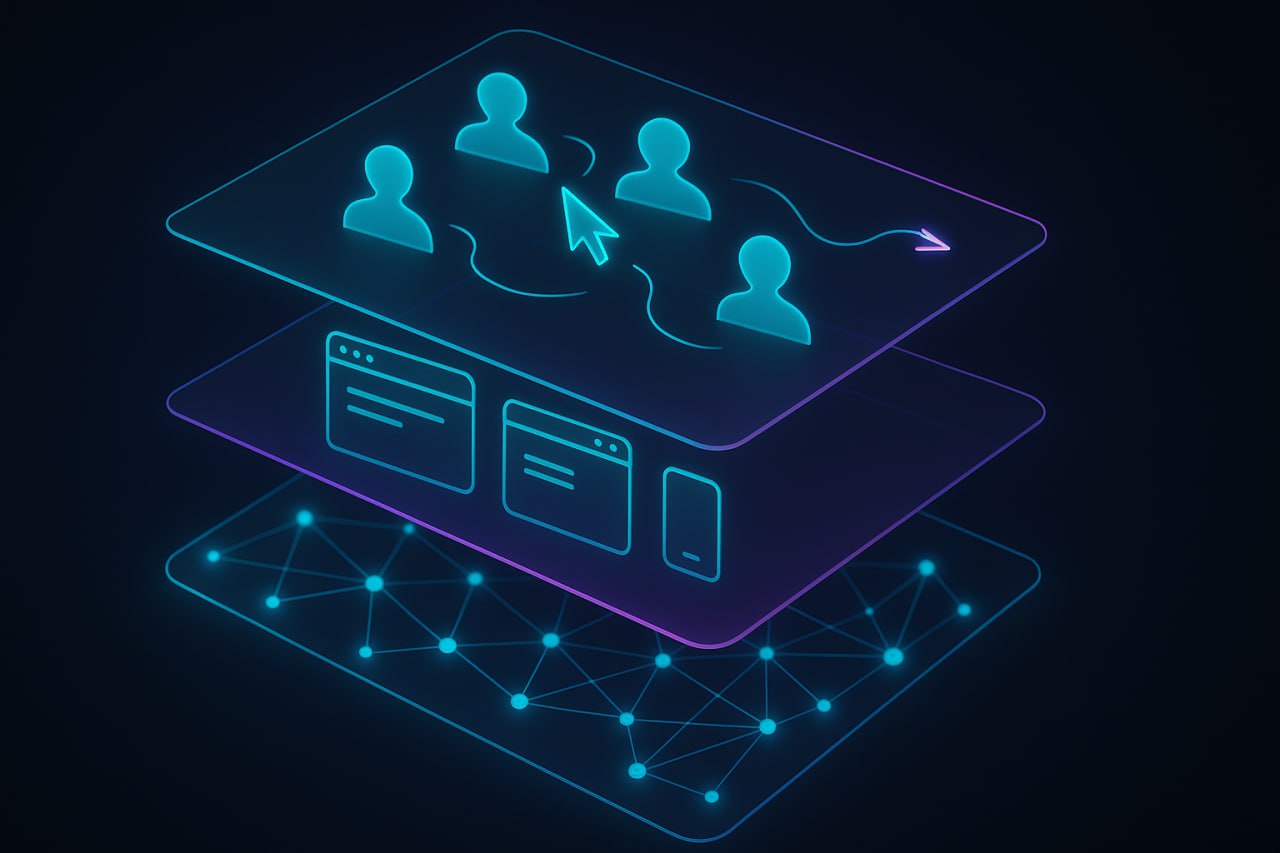
Modern anti-bot systems rely on three layers:
- Network: IP reputation, proxies, AS, mobile/residential traffic.
- Browser fingerprint: User-Agent, WebGL, Canvas, fonts, plugins, timezone, screen resolution, media devices, and hundreds of other signals.
- Behavior: click and scroll speed, navigation patterns, read-vs-act share, form errors, CAPTCHAs, anomalous paths.
Plain Selenium / Playwright:
- gives an identical fingerprint every time;
- leaves clear automation markers (
navigator.webdriver, CDP traces, etc.); - most often runs on cheap server-side proxies.
Antidetect browsers solve the first and second layers:
- create isolated profiles with different fingerprints, cookies, localStorage, etc.;
- spoof browser APIs: Canvas, WebGL, WebRTC, media devices, SSL fingerprint, geolocation, battery API, Bluetooth, SpeechSynthesis, headers, and more;
- integrate with residential (mobile) proxies;
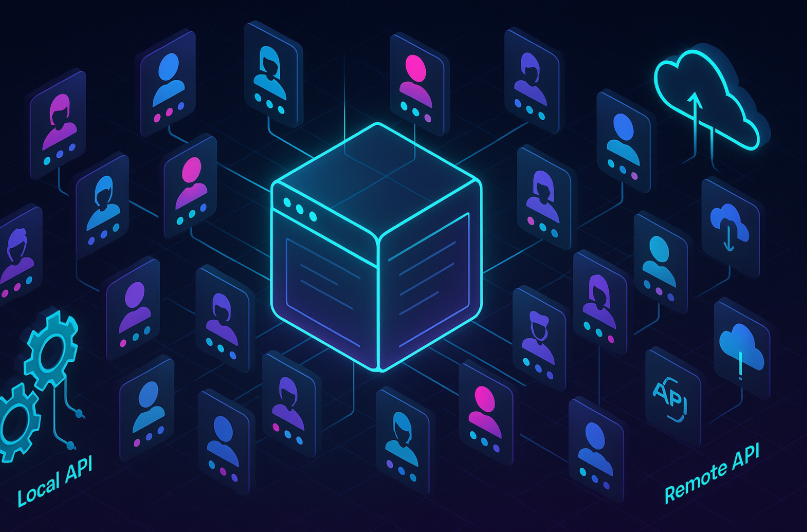
- provide local and cloud APIs for profile automation.
The MuLogin antidetect browser, in particular:
- manages hundreds and thousands of profiles with independent fingerprints and full environment isolation;
exposes a Local REST API on127.0.0.1:30725and a cloud API athttps://a.mulogin.comfor creating/starting/stopping/sharing profiles;
officially supports integration with Selenium and Puppeteer; Playwright connects via the same CDP mechanisms at the architectural level; - works directly through the Chrome DevTools Protocol (debuggerAddress), rather than the classic WebDriver protocol.
The antidetect takes away most of the “low-level pain”. Everything related to scenarios, timing, and task queues is the developer’s responsibility.
Ways to connect an antidetect to your code
Standard work with an antidetect browser is straightforward: you create profiles (configure the browser fingerprint, attach proxies, assign roles, and work with them). But that’s all about using the antidetect directly. Let’s look at the question a bit more technically.
Local browser + WebDriver (Selenium via MuLogin)
The classic MuLogin + Selenium setup looks like this:
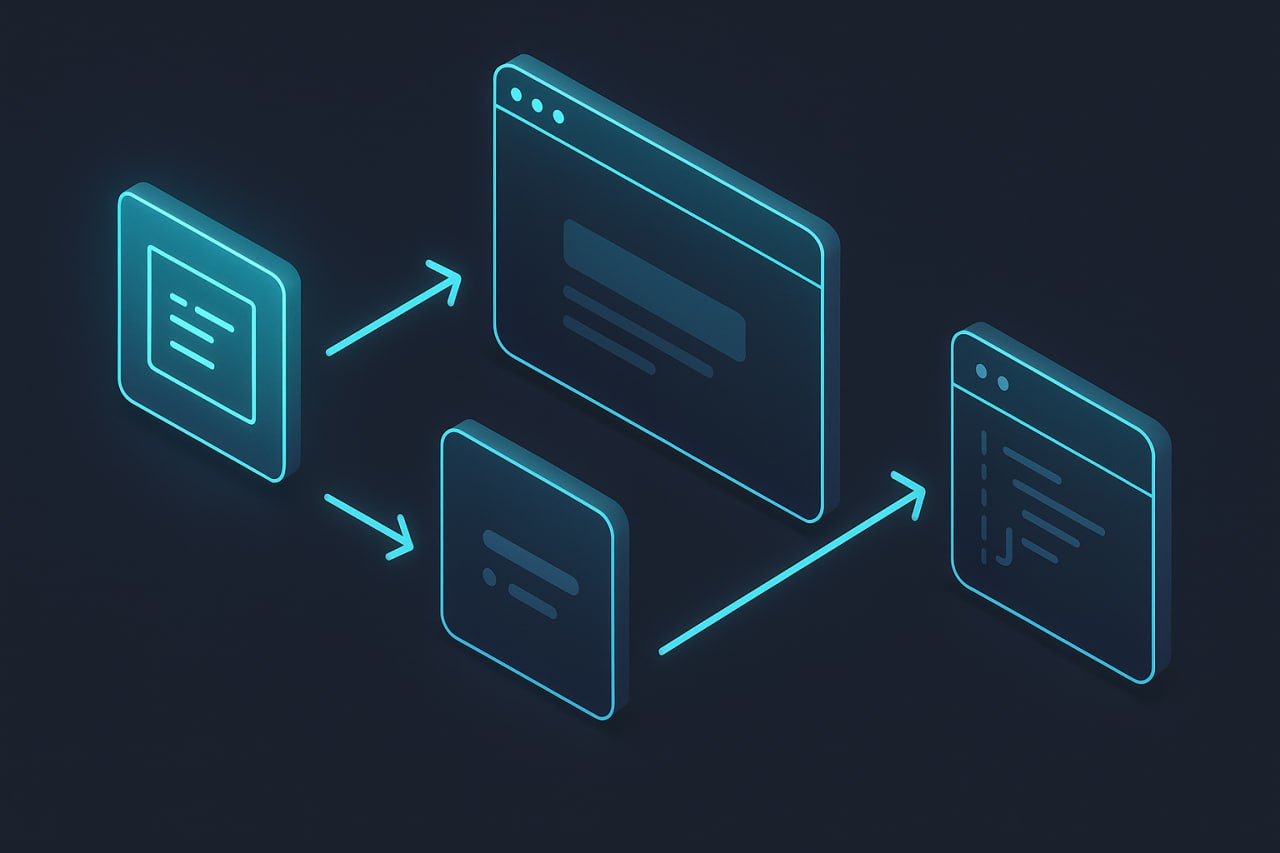
- In MuLogin you enable browser automation and set a port (
30725by default). - Via the Local API you call
/api/v1/profile/startwith profileId and flags. - The response is JSON with:
- status (OK / ERROR),
- value - a string with an address like
ws://127.0.0.1:XXXXX/devtools/browser/...(used as debuggerAddress), chromedriver- the full path to a matching ChromeDriver.- Selenium connects to the already running browser via
debuggerAddressinstead of launching its own instance.
Example
language
from selenium import webdriver
from selenium.webdriver.chrome.options import Options
from selenium.webdriver.chrome.service import Service as ChromeService
import requests

mla_profile_id = 'xxxxxxxx-xxxx-xxxx-xxxx-xxxxxxxxxxxx'

# 1. Start the profile via MuLogin Local API
mla_url = f'http://127.0.0.1:30725/api/v1/profile/start?skiplock=true&profileId={mla_profile_id}'
resp = requests.get(mla_url)
data = resp.json()

if data['status'] == 'ERROR':
    print(data['value'])  # error text from MuLogin
    quit()

print(data['value'])  # string with DevTools / remote debugging address

# 2. Connect to the already running profile
chrome_options = Options()
chrome_options.add_experimental_option("debuggerAddress", data['value'][7:])
# the slice [7:] strips "ws://", leaving host:port

service = ChromeService(executable_path=data['chromedriver'])

driver = webdriver.Chrome(service=service, options=chrome_options)

driver.get('https://www.bing.com/')
print(driver.command_executor._url)
print(driver.session_id)
print('ok it is done')
# driver.quit()  # better to close via MuLogin API /profile/stop
Key points:
- MuLogin itself launches the browser profile and returns the path to a compatible
chromedriver, which eliminates version mismatch issues. - On the Selenium side you connect to a running runtime via DevTools (
debuggerAddress), not through a WebDriver handshake. - Through the Local API you can set/override a proxy for a specific run (proxytype,
proxyserver,proxyport,login/password), while the base profile settings remain unchanged - only the current session is affected.
Pros:
- easy entry for those already deeply invested in Selenium;
- official example from MuLogin;
- easy to scale via multiple workers, each starting/stopping the required
profileId.
Cons:
- plain Selenium is heavily detectable by default; the antidetect smooths out part of the markers, but the behavior and high-level patterns remain.
HTTP API: open_profile / newtab / execute / screenshot
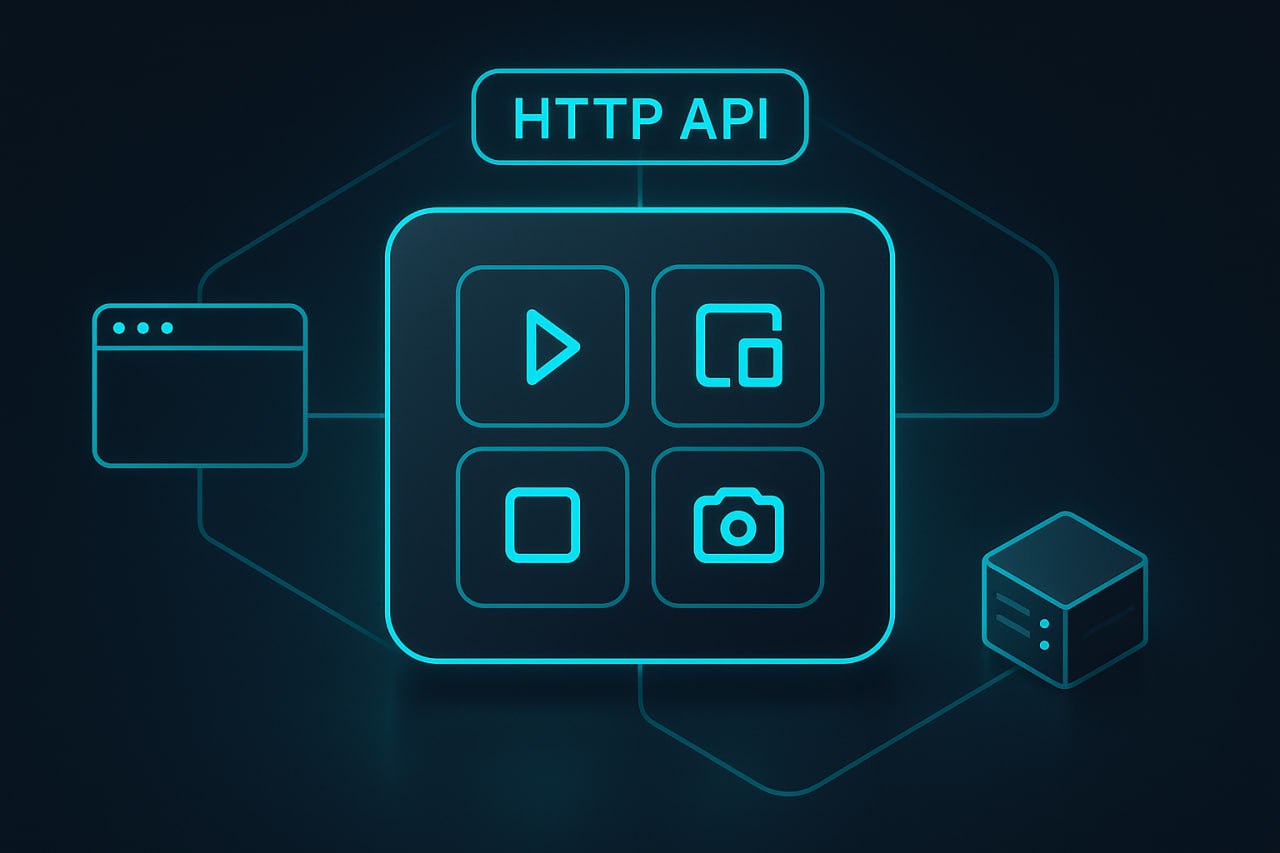
MuLogin provides a fairly rich Local API for controlling a profile without directly attaching a WebDriver:
Endpoint - Purpose - Method
/api/v1/profile/start - Start profile (with optional proxy/automation) - GET
/api/v1/profile/stop - Stop profile - GET
/api/v1/profile/newtab - Open a new tab with URL - GET
/api/v1/profile/source - Get HTML source of the active tab - GET
/api/v1/profile/refresh - Reload page - GET
/api/v1/profile/ScreenShot - Screenshot of page - POST
/api/v1/profile/execute (Execute Script) - Execute JavaScript in the tab context - POST
Open a new tab:
http://127.0.0.1:30725/api/v1/profile/newtab?profileId=...&url=https://example.com
Reload the page:
http://127.0.0.1:30725/api/v1/profile/refresh?profileId=...
Get HTML source:
http://127.0.0.1:30725/api/v1/profile/source?profileId=...
The simplest “HTTP bot” example without Selenium:
language
import requests
import time

BASE = "http://127.0.0.1:30725/api/v1"
PROFILE_ID = "xxxxxxxx-xxxx-xxxx-xxxx-xxxxxxxxxxxx"

def start_profile():
    r = requests.get(f"{BASE}/profile/start", params={
        "skiplock": "true",
        "profileId": PROFILE_ID
    })
    data = r.json()
    if data["status"] == "ERROR":
        raise RuntimeError(data["value"])
    return data

def open_tab(url):
    requests.get(f"{BASE}/profile/newtab", params={
        "profileId": PROFILE_ID,
        "url": url
    })

def get_source():
    r = requests.get(f"{BASE}/profile/source", params={
        "profileId": PROFILE_ID
    })
    return r.text

start_profile()
open_tab("https://example.com")
time.sleep(5)
html = get_source()
print(len(html))
Pros of this approach:
- minimal stack:
requests(HTTP client) is enough; - easy to integrate into existing systems (for example, when tests are launched not from code but from an external orchestrator);
- convenient for massive, simple tasks: landing checks, price monitoring, basic crawling.
Cons:
- without a WebDriver (Playwright or Puppeteer), it’s difficult to implement complex DOM interactions (drag&drop, rich UI, SPA logic);
- debugging scenarios is less convenient.
Remote debugging (CDP) and control via DevTools
Practically all modern antidetect browsers build automation around the DevTools Protocol (CDP):
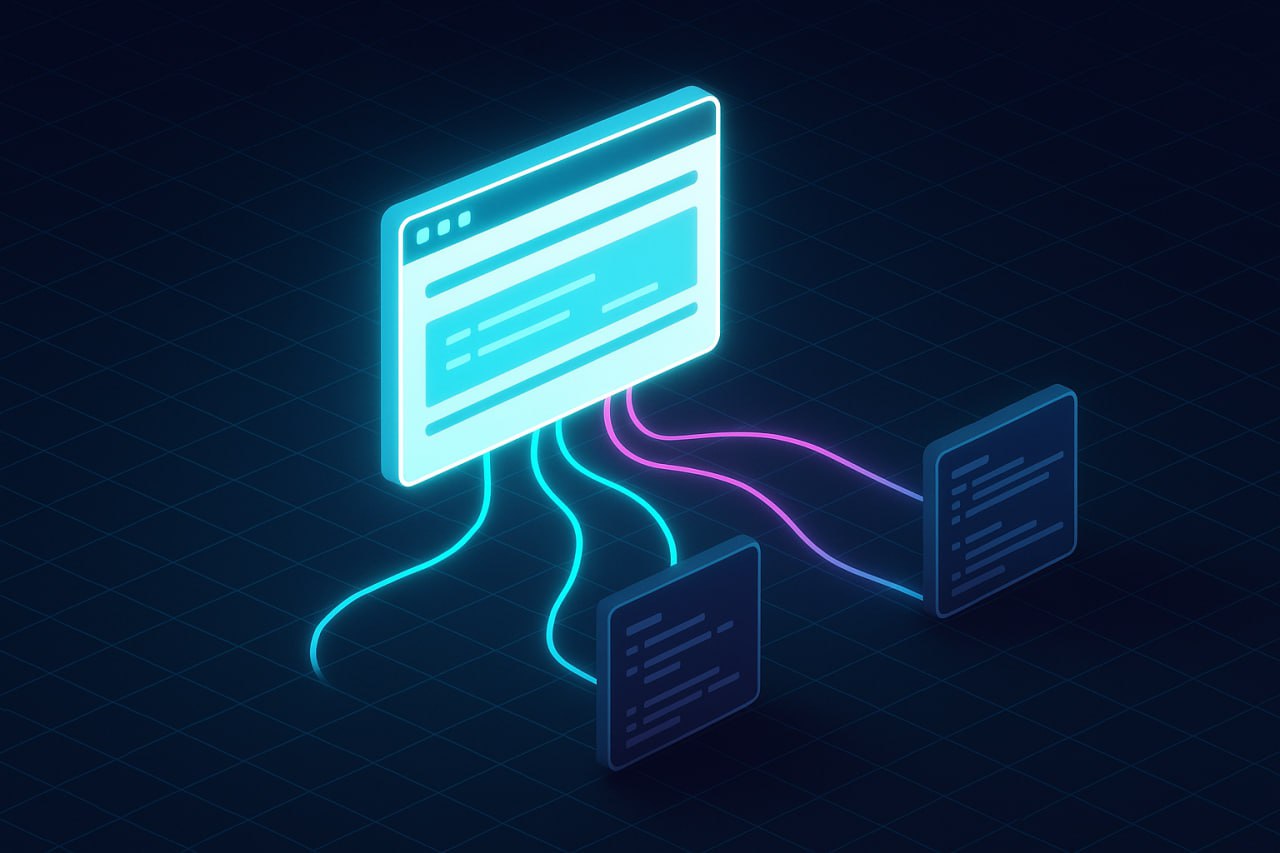
- Chrome/Chromium exposes a WebSocket endpoint like
ws://host:port/devtools/browser/... - Puppeteer and Playwright can connect to an already running browser via this endpoint;
- the antidetect browser starts a profile and returns a ready-to-use
wsEndpointin response to an API call.
In MuLogin it looks like this:
/api/v1/profile/start?...→ JSON withvalue = "ws://127.0.0.1:XXXXX/devtools/browser/...";- for Selenium this string is sliced and used as
debuggerAddress; - for Puppeteer (Playwright) it can be used directly as
wsEndpointforconnect(connectOverCDP) (an architectural pattern widely used in other antidetects).
Example of a generic approach with Puppeteer (Node.js):
language
import puppeteer from 'puppeteer-core';
import fetch from 'node-fetch';

// 1. Get wsEndpoint from the antidetect
const res = await fetch('http://127.0.0.1:30725/api/v1/profile/start?skiplock=true&profileId=...');
const data = await res.json();
if (data.status === 'ERROR') {
  throw new Error(data.value);
}
const wsEndpoint = data.value; // ws://127.0.0.1:XXXXX/devtools/browser/...

// 2. Connect to the already running browser
const browser = await puppeteer.connect({ browserWSEndpoint: wsEndpoint });
const [page] = await browser.pages();
await page.goto('https://bot.sannysoft.com/');
await page.waitForTimeout(5000);
await page.screenshot({ path: 'check.png', fullPage: true });`

Works similarly Playwright:

`import { chromium } from 'playwright';

const wsEndpoint = process.env.CDP_ENDPOINT!; // put value from /profile/start here

const browser = await chromium.connectOverCDP(wsEndpoint);
const context = browser.contexts()[0] ?? await browser.newContext();
const page = await context.newPage();

await page.goto('https://example.com');
The CDP approach:
- eliminates part of the Selenium-specific traces (WebDriver protocol,
webdriver capabilities); - gives the same level of control as local
chromium.launch()(puppeteer.launch()); - is widely used in the antidetect ecosystem (Multilogin + Playwright, other solutions).
Test automation (bot) architecture on top of an antidetect
Now let’s look at how to implement concurrency, since it’s no secret that antidetects were mostly invented for this - to implement multi-account operations. Here’s how it works.
One process = one profile vs worker pool
There are two basic approaches:
Approach - Pros - Cons
1 process = 1 profile - Simplicity, isolation, convenient debugging - Memory/CPU grows linearly, hard to manage a large fleet
Worker pool + connections to profiles - Flexible resource utilization, easy to scale by tasks - Queue and profile synchronization get more complex
For MuLogin, the architecture usually looks like this:
- a MuLogin daemon (GUI or headless) runs on a server/workstation;
- the application (bot) talks to it via the Local API (
127.0.0.1:30725) and/or cloud APIa.mulogin.com; - each worker:
- starts the required
profileId(if not already running); - connects via Selenium / CDP;
- executes the scenario;
- logs metrics;
- takes a task from the queue;
- stops the profile if needed.
- starts the required
Task queue and profile dispatcher
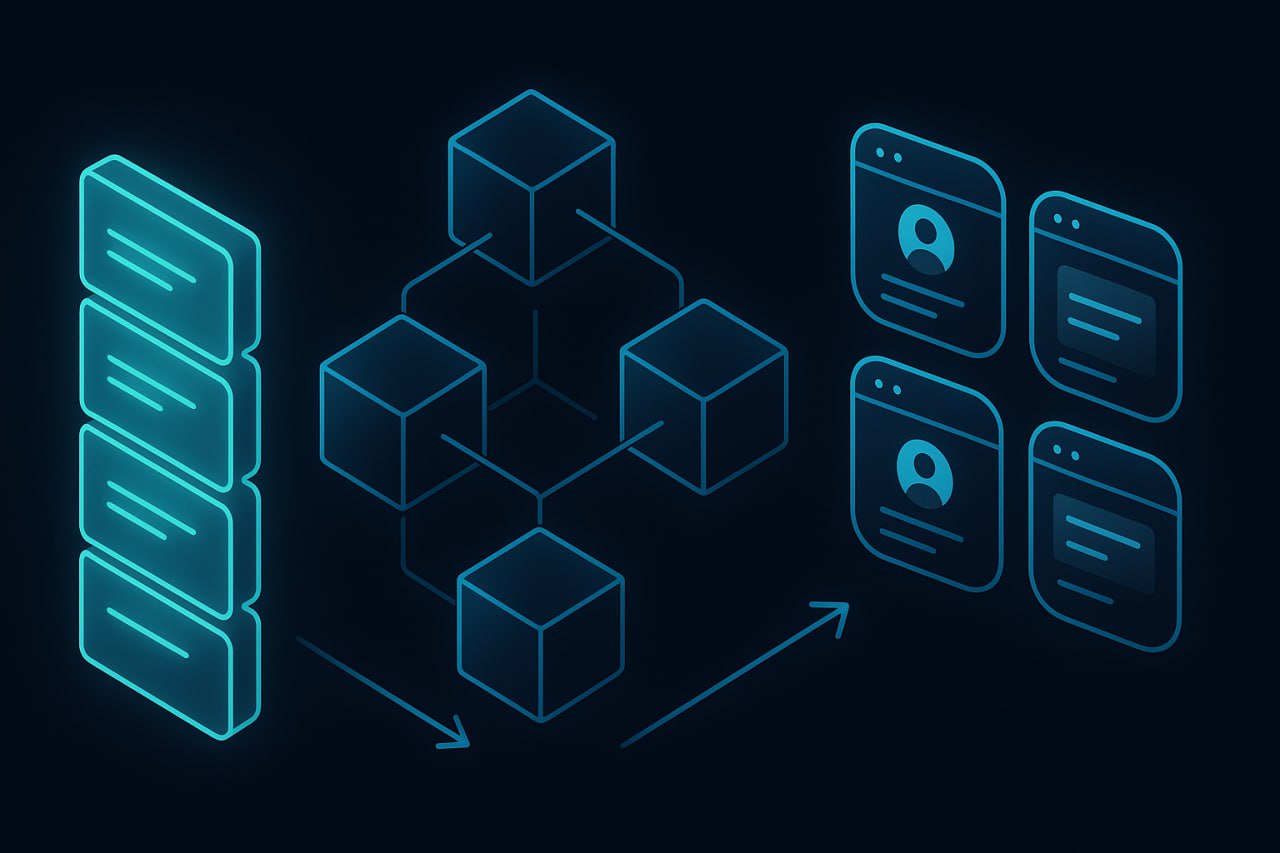
A practical scheme is a central queue where profile and account are separate entities:
Field - What it stores
task_id - unique task ID
profile_id - associated MuLogin profile
account_id - business account ID (FB, Amazon, Ads, etc.)
priority - processing priority
status - pending / running / done / failed / blocked
next_run_at - when the task can be picked up (rate limits / pauses)
last_error - error code / type of block / reason for stopping
ttl_score - a soft TTL indicator for the profile
On top of that, you build a dispatcher:
- limit N profiles per domain per IP;
- limit concurrent tasks per profile (
max_sessions_per_profile = 1almost always in production); - warm-up of profiles (first sessions - read-only, no critical actions).
Why “plain” Selenium is detectable
Why can’t you just use Selenium without fancy antidetect browsers? You can - but with an antidetect browser it’s significantly more efficient. Here’s what’s wrong with plain Selenium.
navigator.webdriver and the WebDriver protocol
A stock ChromeDriver:
- sets
navigator.webdriver = true, which by specification means “browser is controlled by WebDriver”; - adds flags to the command line (
--enable-automation,--disable-infobars) and an automation extension; - produces specific HTTP headers and network stack behavior.
Detection is trivial:
if (navigator.webdriver) isBot = true;
Advanced techniques include:
- checking for
chrome.webstore,window.chrome, and other objects; - analyzing error stacks and
console.logbehavior (there are even dedicated CDP-based detectors); - headless mode checks via
userAgent, Canvas, and rendering behavior.
Of course, you can use things like:
--disable-blink-features=AutomationControlled;excludeSwitches: ["enable-automation"];useAutomationExtension: False;- inject scripts via
Page.addScriptToEvaluateOnNewDocumentto overridenavigator.webdriver
But even the authors of such tricks warn: any manual tampering can break navigation or leave non-linear traces. And it’s hard to cover everything.
Headless and behavioral markers
Headless mode has its own issues:
Headless with the default window, which differs from most real users:
- abnormally fast clicks, no natural scrolls;
- linear URL transitions without “noise” (no back/forward, no input errors, no mouse movement, etc.);
- no fingerprint diversity (same Canvas/WebGL/fonts, etc.).
What the antidetect patches and what remains in code
What MuLogin takes care of
Modern antidetect browsers, MuLogin included, target fingerprinting and automation integration:
- unique fingerprints per profile, with an updatable parameter database;
- flexible fingerprint configuration: media devices, SSL, Bluetooth API, battery API, SpeechSynthesis, headers, and much more;
- profile isolation and encryption of local profile data
- integration with proxy networks (including 2prx.com);
- Local REST API and cloud API for profile management and automation;
- supported integration with Selenium and Puppeteer for end-to-end tests and complex scenarios.
What still must be done in code
Even with a perfect fingerprint, behavioral and orchestration aspects remain:
- Timing: random but plausible delays, depending on action complexity.
- Clicks and mouse:
- mouse movement along trajectories, not teleporting;
- rare “misses” and corrections.
- Scrolling:
- inertial scroll, pauses in the middle of the page;
- jumps to anchors, mouse wheel usage.
- Navigation:
- not just direct
gototransitions, but clicks on menus and buttons; - occasional navigation back, input errors, repeated form submissions.
- Network discipline:
- RPS limits per domain/profile/IP;
- pauses between sessions and “night mode” for profiles.
- CAPTCHA behavior:
- not instant and not 100% successful solving;
- occasional manual confirmations/errors.
MuLogin adds a useful --disable-blink-features=AutomationControlled option at the profile settings level, which is an extra “anti-detection” measure. But without reasonable scenarios and timing, this flag does very little.
Automation metrics: how to understand that you’re being “sniffed out”
Most developers and “vibe-coders” use simple “works/doesn’t work” metrics. But you can approach this more creatively and introduce more explicit metrics to understand what exactly is going wrong.
Detection rate
In applied terms, detection rate is the share of sessions/actions where the site clearly turns protection on:
- returns a challenge page (JS challenge, “checking your browser”, full-screen reCAPTCHA);
- returns a specific HTTP code (429, 403 with bot-related text, special anti-bot responses);
- serves a placeholder page instead of the target content.
The formula is straightforward:
Detection Rate = detected_events / total_sessions or total_actions
Example data sources:
- your own logs of HTTP codes (URL, title, key HTML phrases);
- external services;
- test pages like well-known bot checks (bot.sannysoft, nowsecure, etc.).
Average profile TTL until the first suspicion
Here TTL is the profile’s “lifetime” in a more or less comfortable mode before serious complications:
- sharp increase in CAPTCHA frequency;
- constant JS challenges;
- frequent 403/429 on basic pages;
- having to confirm login via SMS/email on every visit.
Practically:
- you store
first_seen_atfor a profile (or for a specific domain in that profile); - you log all “suspicion” events;
TTL = time_of_first_serious_issue - first_seen_at.
It’s useful to store TTL per domain and profile, not just globally.
Number of CAPTCHAs per 1000 actions
CAPTCHAs per 1000 actions is an excellent “smell indicator”:
CAPTCHA per 1000 actions = (captcha_events / total_actions) × 1000
Where:
captcha_events- number of CAPTCHA widget triggers (via URL, DOM selector, or solver API response);total_actions- clicks, form submissions, significant navigation.
A realistic scenario:
- for a normal user, CAPTCHA appears extremely rarely;
- if the bot sees them every 20–30 actions, the profile/behavior/proxy is suspicious.
Example aggregation (pseudo-SQL):
language
SELECT
  profile_id,
  domain,
  COUNT(*) FILTER (WHERE event_type = 'captcha') * 1000.0 /
  NULLIF(COUNT(*) FILTER (WHERE event_type IN ('click', 'submit', 'navigate')), 0)
    AS captchas_per_1000_actions
FROM events
GROUP BY profile_id, domain;
Practical tips from real-world antidetect usage - what to look at
-
Track core and driver versions
MuLogin explicitly states thatchromedrivermust match the core version and even provides direct links to suitable builds. A mismatch = weird errors/crashes that are easy to mistake for anti-bot behavior. -
Avoid headless where possible
In headless mode, even without automation, many tests on bot-check pages (like bot.sannysoft) fail according to public guides - Canvas, WebGL, plugins, etc. An antidetect can mask part of this, but headful + antidetect + reasonable timing is almost always more stable. -
Check pages as integration tests
Maintain a set of test pages:- bot checks for fingerprints (Canvas, WebGL, navigator.webdriver, etc.);
- Cloudflare / anti-bot tests.
-
It’s useful to run each new scenario build and each major MuLogin configuration change through them.
-
Separate profiles by task
Profiles that:- only read pages,
- actively create/change accounts,
- work with money/ads,
are better not mixed. TTL and CAPTCHA metrics will differ greatly.
-
Use cloud API for profile management
MuLogin’s cloud API (a.mulogin.com/v1/profile/...) allows you to:- list profiles in bulk;
- delete/transfer ownership;
- share profiles between accounts.
This is convenient for CI/CD and multi-team work.
In lieu of a conclusion
The MuLogin antidetect browser:
- solves the technical part of fingerprinting and profile isolation;
- provides convenient APIs for automation via Selenium / DevTools / HTTP;
- simplifies working with proxies and teams.
But scenario robustness is defined by:
- architecture (workers, task queue, profile policy);
- behavioral patterns (timing, clicks, scrolls, errors);
- metrics (Detection Rate, TTL, CAPTCHA per 1000 actions).
If you take all of this into account, the “MuLogin + Selenium/Playwright/Puppeteer” stack lets you build fairly robust, scalable bots and test suites that live long, predictable lives - instead of “passing one test on bot.sannysoft.com” and immediately dying on a real project.