



How to build a Playwright web scraper with Browser API

Tech builder focused on infrastructure, automation, backend systems, and scalable SaaS development
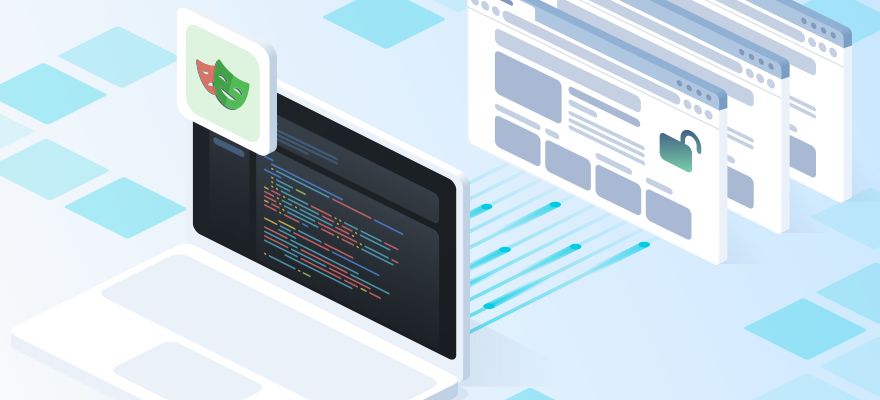
Production-ready Node.js Playwright scraper that can bypass captcha automatically, keep browser sessions stable, extract real page data, switch profiles when needed, and save clear diagnostics when a run fails.
The original scraper was simple: open Google, search for a page, follow the result, and collect the URL, title, H1, text, and links.
Unofficial GitHub code example link.
The first version used Playwright with a local Chromium instance.
js
import { chromium } from 'playwright';

const browser = await chromium.launch({ headless: false });
const page = await browser.newPage();

await page.goto('https://www.google.com', {
  waitUntil: 'domcontentloaded',
});

await page.getByRole('combobox').fill('2Captcha Browser API');
await page.keyboard.press('Enter');

await page.waitForURL(/\/search/);

console.log(await page.title());

await browser.close();
That worked until Google started returning reCAPTCHA pages.
Some runs completed normally. Others stopped at a verification page or loaded a different page state. Adding retries and longer timeouts made the script slower, but not much more reliable.
The problem was the browser session itself, so we moved the scraper to 2Captcha Browser API.
Connecting Playwright to Browser API
Before Playwright connects, the script requests a fresh connectionUri:
text
POST https://api.2captcha.com/browser/connection
js
const response = await fetch(
  'https://api.2captcha.com/browser/connection',
  {
    method: 'POST',
    headers: {
      'content-type': 'application/json',
    },
    body: JSON.stringify({
      key: process.env['2CAPTCHA_API_KEY'],
      accountId: Number(process.env.BROWSER_ACCOUNT_ID),
      profileId: process.env.BROWSER_PROFILE_ID,
    }),
  },
);

const { connectionUri } = await response.json();
Do not log connectionUri. It contains connection details for the browser session and should be treated as a secret.
Playwright then connects to the remote browser over CDP:
js
import { chromium } from 'playwright-core';

const browser = await chromium.connectOverCDP(connectionUri);

const context = browser.contexts()[0];
const page = await context.newPage();
There is no need to create another browser context. The profile has already been loaded by Browser API, so the existing context is the one we want.
The connection path is:
text
Node.js
  ↓
2Captcha Browser API
  ↓
connectionUri
  ↓
Playwright connectOverCDP()
  ↓
browser context
  ↓
page automation
Automatic captcha solving
Once the page is created, open a CDP session and enable captcha solving:
js
const session = await page.context().newCDPSession(page);

await session.send('Captcha.setAutoSolve', {
  autoSolve: true,
  options: [{ type: '*' }],
});
Instead of sleeping for a fixed number of seconds, wait for the result:
js
const solved = new Promise((resolve, reject) => {
  session.once('Captcha.solveFinished', resolve);
  session.once('Captcha.solveFailed', reject);
});

await page.goto('https://2captcha.com/demo/recaptcha-v2', {
  waitUntil: 'domcontentloaded',
});

await solved;
After Captcha.solveFinished, the script can verify that g-recaptcha-response has been populated and continue with the page:
js
const tokenExists = await page
  .locator('textarea[name="g-recaptcha-response"]')
  .evaluate((textarea) =>
    Boolean(textarea.value && textarea.value.length > 0),
  );

await page
  .getByRole('button', { name: /check/i })
  .click();

await page.screenshot({
  path: 'artifacts/recaptcha-result.png',
  fullPage: true,
});

console.log({ tokenExists });
This is more dependable than:
js
await page.waitForTimeout(10000);A fixed delay only tells you that ten seconds have passed. It does not tell you whether the captcha was solved.
Using multiple browser profiles
One browser profile can have one active CDP connection. Each new run also needs a fresh connectionUri.
For concurrent jobs, a small profile pool works better than a single BROWSER_PROFILE_ID.
js
function browserProfileIds() {
  const pooled = process.env.BROWSER_PROFILE_IDS;

  if (pooled) {
    return pooled
      .split(',')
      .map((value) => value.trim())
      .filter(Boolean);
  }

  return [process.env.BROWSER_PROFILE_ID];
}
The connection code can try profiles one by one:
js
async function connectWithProfilePool({
  apiKey,
  accountId,
  profileIds,
}) {
  for (const profileId of profileIds) {
    try {
      const connectionUri = await getConnectionUri({
        apiKey,
        accountId,
        profileId,
      });

      const browser =
        await chromium.connectOverCDP(connectionUri);

      return {
        browser,
        profileId,
      };
    } catch {
      // Try the next profile.
    }
  }

  throw new Error(
    'Could not connect to any Browser API profile',
  );
}
If one profile is already busy, the scraper moves to the next one.
Extracting page data
Once the target page is open, we collect the basic page data and a small set of links:
js
const data = await page.evaluate(() => {
  const links = Array.from(
    document.querySelectorAll('a[href]'),
  )
    .map((anchor) => ({
      text:
        anchor.textContent
          ?.replace(/\s+/g, ' ')
          .trim()
          .slice(0, 120) || '',
      href: anchor.href,
    }))
    .slice(0, 25);

  return {
    url: location.href,
    title: document.title,
    h1:
      document
        .querySelector('h1')
        ?.textContent
        ?.replace(/\s+/g, ' ')
        .trim() || null,
    textPreview: document.body.innerText
      .replace(/\s+/g, ' ')
      .trim()
      .slice(0, 700),
    links,
  };
});
Saving the current URL, page title, text preview, and links also helps when a run produces an unexpected result. You can see what the browser actually loaded instead of guessing from the exception.
Saving diagnostics on failure
When something fails, we save a screenshot and a small JSON file with the current URL and error message:
js
try {
  // Main automation flow.
} catch (error) {
  await page.screenshot({
    path: 'artifacts/error.png',
    fullPage: true,
  });

  await writeFile(
    'artifacts/error.json',
    JSON.stringify(
      {
        ok: false,
        message: error.message,
        currentUrl: page.url(),
      },
      null,
      2,
    ),
  );
}
Keep secrets out of these files. In particular, do not save:
- API keys;
- proxy passwords;
- browser passwords;
connectionUri;- authentication tokens.
Debug output is useful only if it does not leak credentials.
Final scraper flow
The scraper now does the following:
- Checks the required environment variables.
- Requests a fresh
connectionUri. - Connects with
chromium.connectOverCDP(). - Reuses the existing browser context.
- Opens a new page.
- Enables
Captcha.setAutoSolve. - Opens Google.
- Runs the search.
- Opens the result from
2captcha.com. - Extracts the URL, title, H1, text, and links.
- Saves a screenshot.
- Opens the reCAPTCHA v2 demo.
- Waits for
Captcha.solveFinished. - Checks
g-recaptcha-response. - Clicks
Check. - Saves the result.
If the run fails, it also writes error.png and error.json.
We avoid using networkidle as the main signal that a page is ready. Many modern sites keep background requests open, so it can be unreliable.
The same goes for waitForTimeout. If the script can wait for a locator, URL change, page state, or CDP event, that is usually the better option.
Playwright still handles the page itself: navigation, locators, clicks, and extraction. Browser API provides the remote browser session, profiles, and captcha handling over CDP.
The result is a Node.js Playwright scraper that is easier to run repeatedly, easier to debug.