




Was this helpful?
How to Solve a Drag & Drop captcha

Technical engineer
Introduction
Some captchas require you to drag one or more images to specific places on a background image. Solving captchas like these with a token is often difficult or impossible. For such cases we have developed a new method, DragAndDropTask.
You need neither a sitekey nor a token to bypass these captchas. The method works like this: you send the service the background image and the images that have to be dragged, and the service sends back the coordinates — where to put each image. You do the dragging yourself, in your own code.
Below we will go through what to add to the request, how to interpret the answer, and how to get the images from the page. We will also look separately at what most often breaks such integrations.
Which Captchas Use the Drag & Drop Method?
Several kinds of captcha are solved by dragging, but not all of them are solved with this method. Telling them apart is simple. The answer to a DragAndDropTask is a point, which means two numbers: x and y. If solving the captcha needs one number, it is a different method. Below are three cases where Drag & Drop will not fit.
- If an image has a missing piece and there is a slider bar underneath it, what you need is a horizontal distance. Captchas like that are solved with the Coordinates method, and there is a separate article about it: How to Bypass Slider Captcha: A Complete Guide.
- If the image has to be turned with arrows or a slider, what you need is the angle of rotation. For that there is the RotateTask method and the article How to bypass rotate captcha.
- Some well-known widgets have a task type of their own — for example, Capy Puzzle and Temu. For those it is better to take that dedicated type: the service will send a ready answer, and you will not have to work with coordinates.
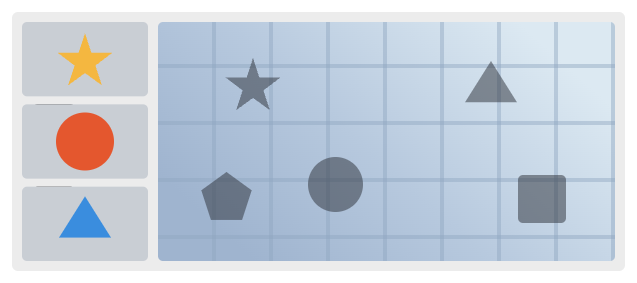
But if one or more images have to be placed on a background, this is exactly the case where the Drag & Drop method fits.
How to Send a Drag & Drop Task to the API
Endpoint: POST https://api.2captcha.com/createTask
| Property | Type | Required | Description |
|---|---|---|---|
type |
String | Yes | DragAndDropTask |
background |
String | Yes | Background image encoded into Base64 |
images |
Array of String | Yes | Images to drag, Base64. Order matters — the same order is used in the response |
comment |
String | No | A comment shown to workers, e.g. the prompt text of the round |
json
{
  "clientKey": "YOUR_API_KEY",
  "task": {
    "type": "DragAndDropTask",
    "background": "BASE64_BACKGROUND",
    "images": ["BASE64_IMAGE_1", "BASE64_IMAGE_2", "BASE64_IMAGE_3"],
    "comment": "Drag ONE animal to the matching silhouette"
  }
}
There are only three fields in the request. None of the official SDKs has a ready-made function for this method, so you have to build the request by hand.
In response to createTask the service sends a taskId, the number of the task. Use that number to call the getTaskResult method at POST https://api.2captcha.com/getTaskResult, and repeat the request every 3 to 5 seconds. While the task is being solved, the status field holds the value processing. Once it is solved, the answer appears in solution.coordinates.
json
{
  "errorId": 0,
  "status": "ready",
  "solution": {
    "coordinates": [
      {"x": 120, "y": 340},
      null,
      {"x": 210, "y": 90}
    ]
  },
  "cost": "0.0012",
  "createTime": 1692863536,
  "endTime": 1692863556
}
Interpreting the Coordinates
The coordinates array has three features. If you do not account for them, the integration will not work.
A null value is an answer, not an error. It marks an image that does not have to be moved. It is not the coordinates (0, 0), and it is not a failure of the service. The length of the array and the order of the answers in it are always the same as in the images array you sent: the first image matches the first answer, the second matches the second, and so on. So go through both arrays at the same time and simply skip the null values. You must not delete those entries, or the images and the answers will stop matching.
The coordinates point to the centre of the image, and they are counted from the top-left corner of the background. There are two things to note here. The point (0, 0) is in the top-left corner of the background image, not of the page. And the point you receive is the place where the centre of the image has to end up, not its top-left corner. So there is no need to shift the answer by half the image: take the image by its centre and release the pointer exactly on the point you received.
The coordinates are given in the pixels of the image you sent. If the background on the page is shown smaller than it really is, the coordinates have to be recalculated. Multiply them by the ratio of the shown size to the real size, and only after that add the position of the background on the page. If you do not do this, the image will end up in the wrong place. For example, when the background is shown at half its real size, the image will travel exactly twice as far as it should.
Page Analysis
Open DevTools (F12) on the site you need, look through the page source, and answer three questions.
Which elements hold the images? They can be <canvas> elements that the widget draws the images into, ordinary <img> tags, or images set through CSS. How you get them depends on this. From a <canvas> the image is taken with the toDataURL() method. An <img> already has it in the src attribute — either as a ready Base64 string, or as a link that has to be downloaded. If the elements are inside a #shadow-root, reach them through document.querySelector(host).shadowRoot. There is a separate article about how to work out which captcha you are dealing with: How to Identify captcha types on a website.
Which element do you send as the background? Send the picture itself, not the whole widget block. The panel with the images can lie in the same block as the background, or overlap its edge, as it does in the screenshot above. If you take a screenshot of the whole widget, that panel will end up inside the picture that the worker has to read.
Is the background shown at its real size? On a <canvas> the real size is written in the width and height attributes, and on an <img> it is given by the naturalWidth and naturalHeight properties. Compare that value with the size the element takes up on the page. The ratio of these two sizes is the multiplier from the previous section, so write both numbers down.
Whichever way you get the images, keep two things in mind:
First: the service accepts only the Base64 code itself, without the data:image/png;base64, prefix. If you do not remove it, the ERROR_IMAGE_TYPE_NOT_SUPPORTED error will come back.
Second: the order of the images must not be changed. Send them in the order they go on the page, because the coordinates will come back in the same order.
What to Do If the Captcha Appears Only After a Checkbox
Some widgets do not show the images right away. First they show a checkbox, then they check the session when it is clicked, and only after that do they give the captcha itself. The request to the API does not change — what changes is the way you reach that captcha.
The checkbox and the captcha usually lie in different iframes. Switch into each of them separately and do not forget to come back to the top level: the most common mistake is to stay in the frame with the checkbox and not find the background there. And wait until the frame with the captcha appears instead of setting a pause for a fixed time. Otherwise you can start work before the widget has finished drawing.
After one solved captcha the check may not be over. Be ready to go through the whole cycle again and to get the images again every time: a new captcha means new images, and the old coordinates no longer fit them. A captcha is valid for a limited time, so apply the answer as soon as you receive it.
How to Report Solving Results
Check on the site whether your answer was accepted or not, and tell the service about it. If the site did not accept the answer, send the taskId with the reportIncorrect method. If it did accept it, use reportCorrect. Reports improve recognition quality, and in some cases money for an incorrect solution is returned.
json
{ "clientKey": "YOUR_API_KEY", "taskId": 80306543329 }Keep the taskId in your code so that you can send the report after the site confirms the submission of the form. Each case is reviewed separately, and a refund is not guaranteed for every complaint, so send reports only after a real check. And if you have almost no successful solutions, it is better not to send reportIncorrect at all: the problem is most likely in your code, not in the solutions. There is a separate article about reports: How to submit reports.
Common Errors
| Error or problem | Cause | What to do |
|---|---|---|
ERROR_IMAGE_TYPE_NOT_SUPPORTED |
The data:image/png;base64, prefix was not removed |
Send only the Base64 code itself |
ERROR_ZERO_CAPTCHA_FILESIZE |
An empty image was sent. Usually this means the <canvas> was read before the widget had finished drawing it |
Wait until the background is drawn, and only then read it |
ERROR_CAPTCHA_UNSOLVABLE |
The task cannot be solved in the form you sent it | Check the quality of the images, and pass the task text in the comment field |
Your code fails on a null value |
The null was treated as a pair of coordinates |
Skip the nulls. The length and order of the array always match images |
| The image lands next to the right place instead of on it | The coordinates were not recalculated for the display size | Multiply them by the displayed size divided by the real size first, then add the position of the background |
Full list of API error codes: Error Codes.
Checklist
- The background and the images are encoded in Base64, without the
data:image/png;base64,prefix - The
backgroundparameter holds the picture itself, not the whole widget block - The images are sent in the same order as they go on the page
- The text of the task is passed in the
commentparameter - The response is checked before use (
errorId,status,solution.coordinates) -
nullvalues are skipped, but not deleted from the array - Sending the
reportIncorrectandreportCorrectreports is implemented
Additional Resources
- Drag & Drop method documentation · API error codes · How to use sandbox mode
- How to Identify captcha types on a website
- Code examples on GitHub · Contact support
Conclusion
The main difficulty with drag and drop captchas is not the request itself but applying the answer: the service sends a point, and your script has to hit it. There are only three places where it is easy to make a mistake — the order of the images, the origin of the coordinates, and the scale of the background.
The DragAndDropTask method itself is simple: three fields in the request, and an array of coordinates in the response that repeats the images you sent one to one. If you keep in mind that each point sets the centre of the image and is counted from the top-left corner of the background, everything else is ordinary work with the DOM.
Do not forget the reportIncorrect and reportCorrect reports: they improve recognition quality.